3. Using the web app
The walkthrough below processes one invoice from start to finish. A clerk submits it, the clerk is refused when trying to approve it, and an approver corrects the PO number and approves it. A second invoice is then rejected.
3.1 First visit
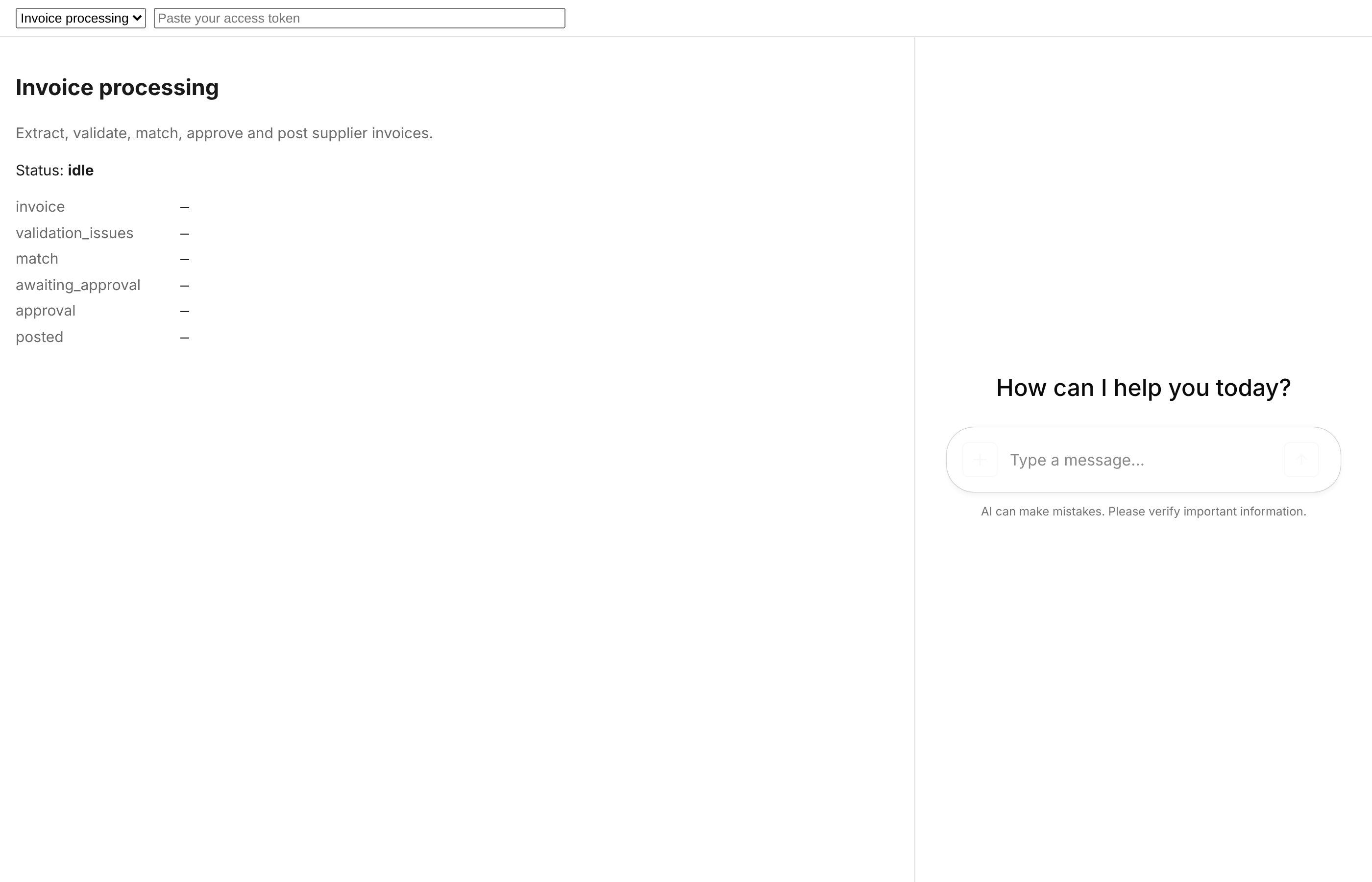
The page has three areas:
- Top bar: the agent picker and the access-token field. The picker lists the workflows the backend compiled from YAML; nothing is hard-coded in the web app.
- Left: the run, showing its status and every state key the workflow allows the browser to see
(its
state_whitelist). - Right: the approval card (when one is open) and the chat.
3.2 Sign in
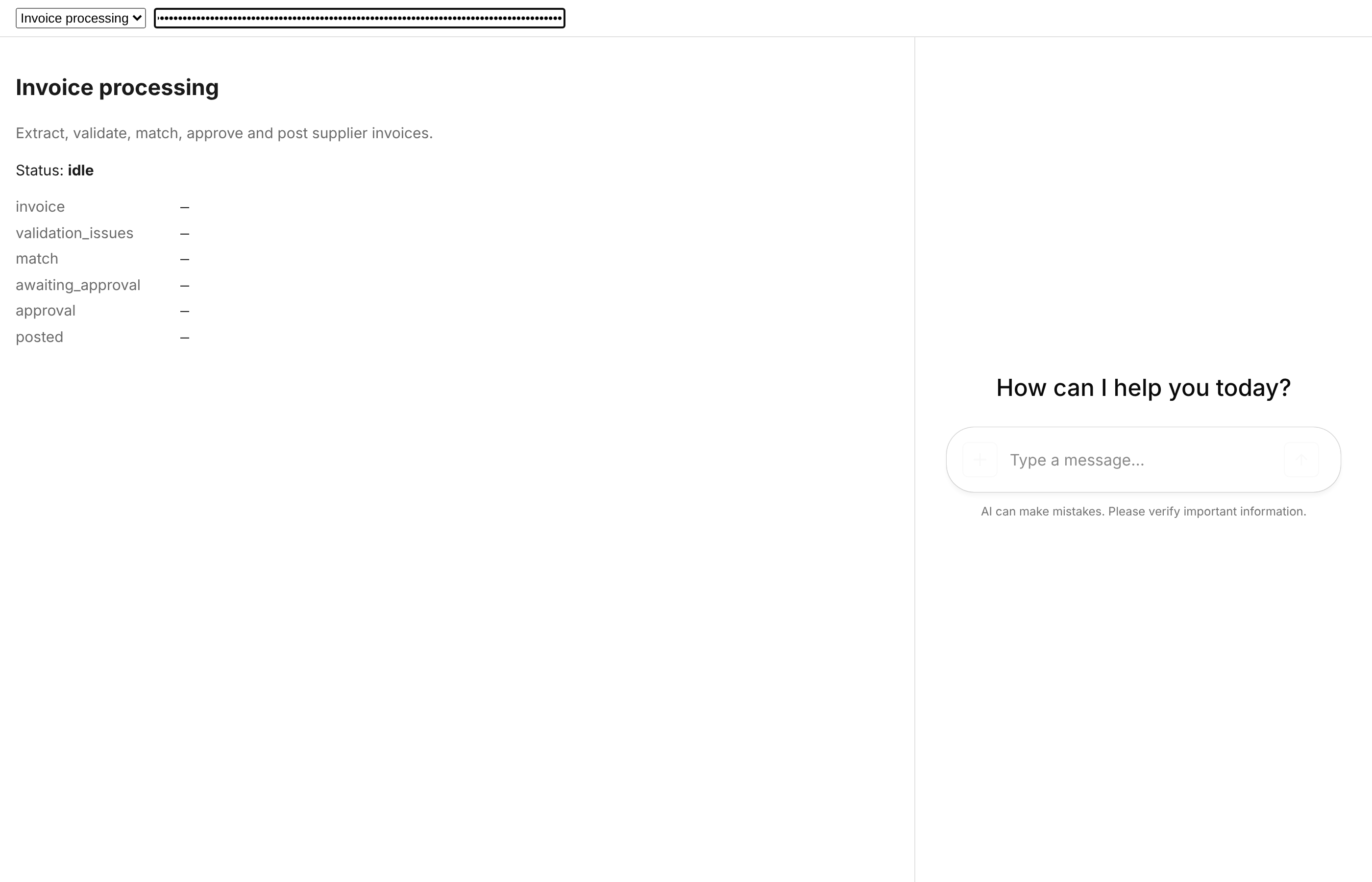
Paste a token from seed_demo into the token field. It is kept for the browser tab only and is
sent to the backend with every request. There is no sign-in screen yet; an identity provider
such as Keycloak is planned.
3.3 Submit an invoice
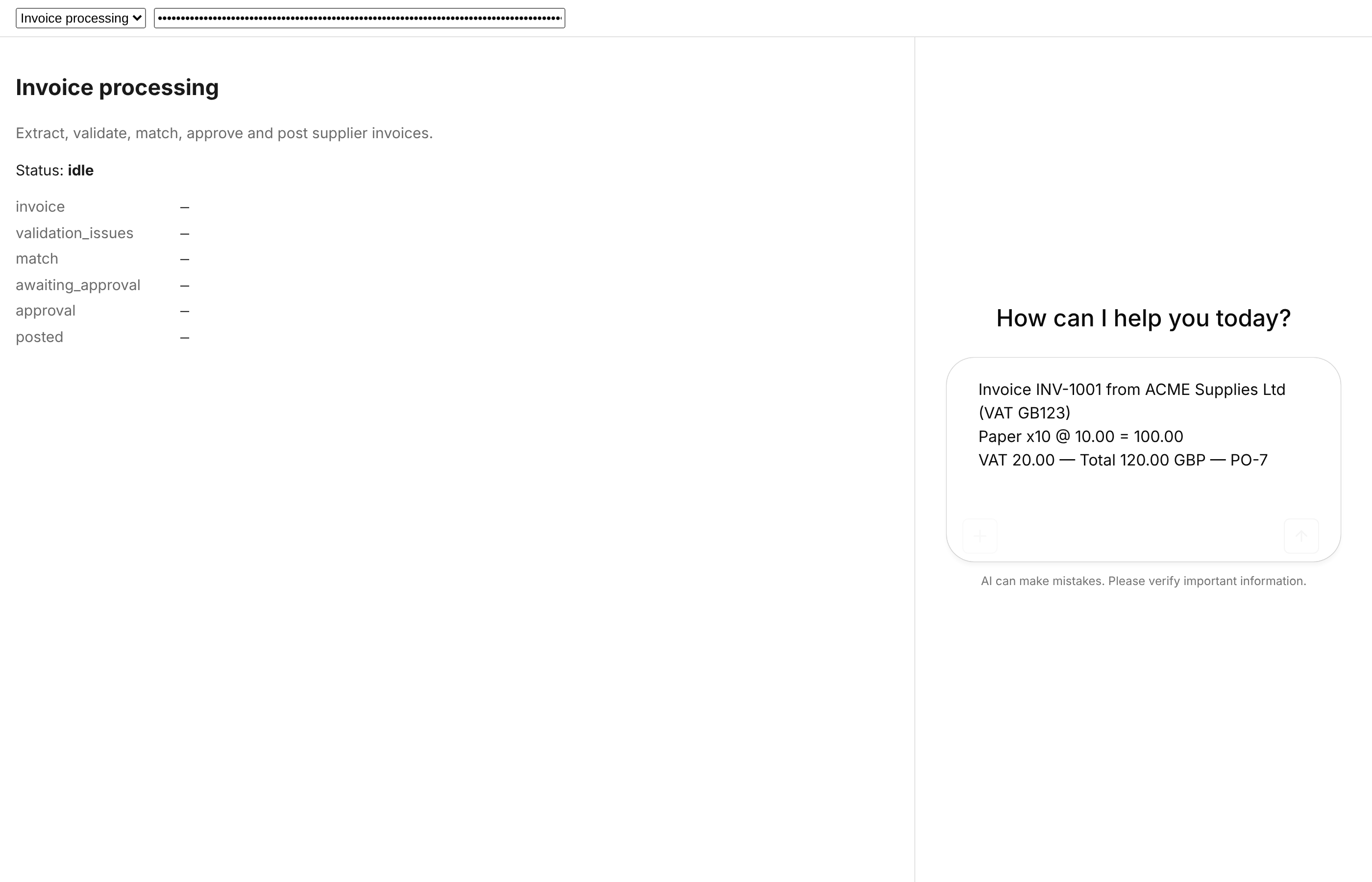
Type or paste the invoice into the chat and press Enter. The chat's text becomes the document the workflow reads. Uploading a file through the API works too (§10).
3.4 The run pauses for approval
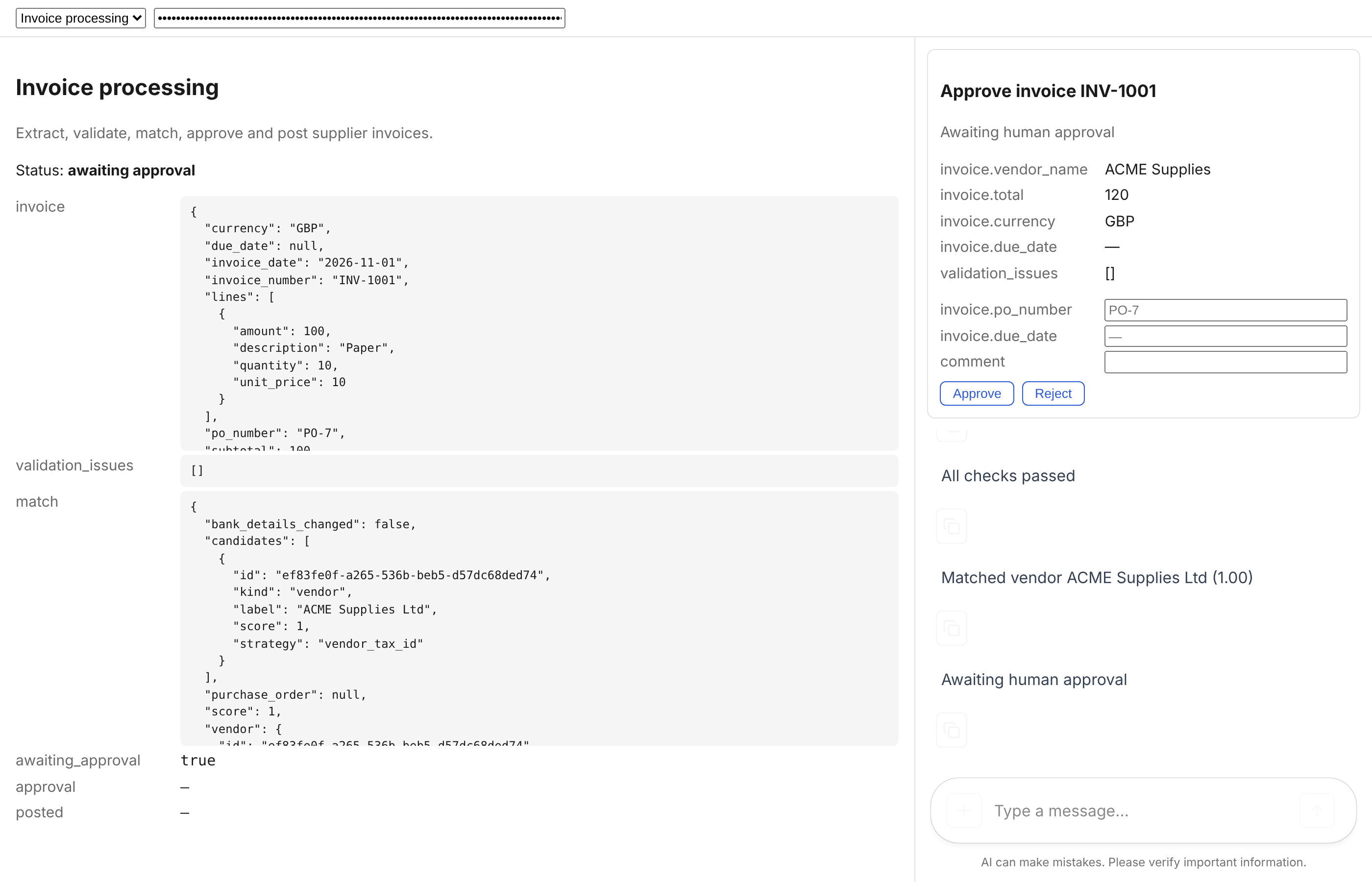
Each step reports as it finishes. The chat narrates (Parsed the document, Extracted invoice,
All checks passed, Matched vendor ACME Supplies Ltd (1.00), Awaiting human approval), and the
state panel fills in:
| State key | What it holds |
|---|---|
invoice | The fields the model extracted, checked against schemas/invoice.yaml |
validation_issues | Problems the rules found; [] means every check passed |
match | The vendor and purchase order found, the score, every candidate, and bank_details_changed |
awaiting_approval | true while a person must decide |
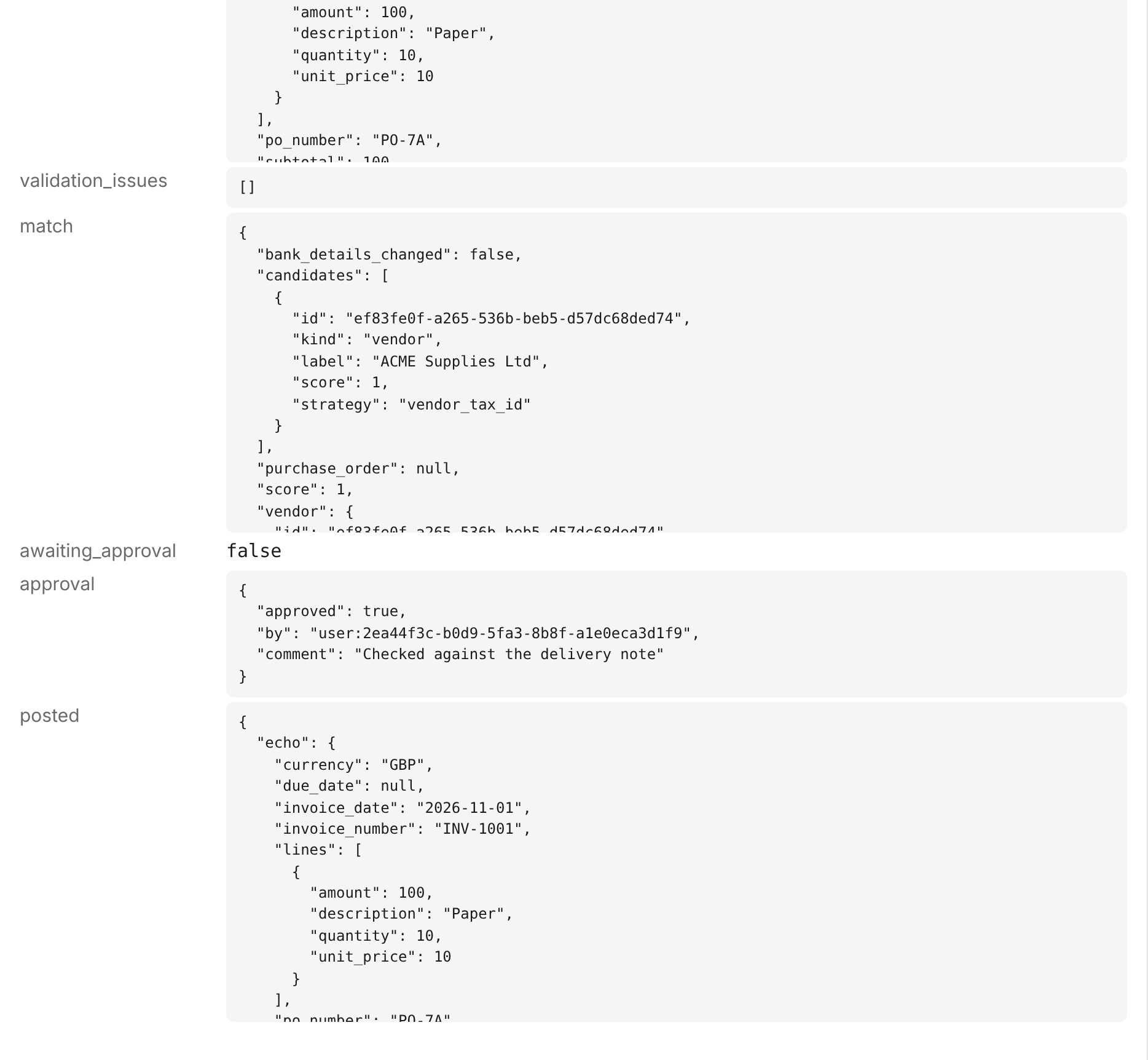
approval | The decision once made: approved, by, comment |
posted | The accounting system's response once the bill is posted |
The demo's narration says Extracted invoice with Qwen/Qwen3.8-27B-FP8: the fixture runs under
the name of the model configured in models.yaml.
The approval card is built from the workflow's ui.approval_card block:
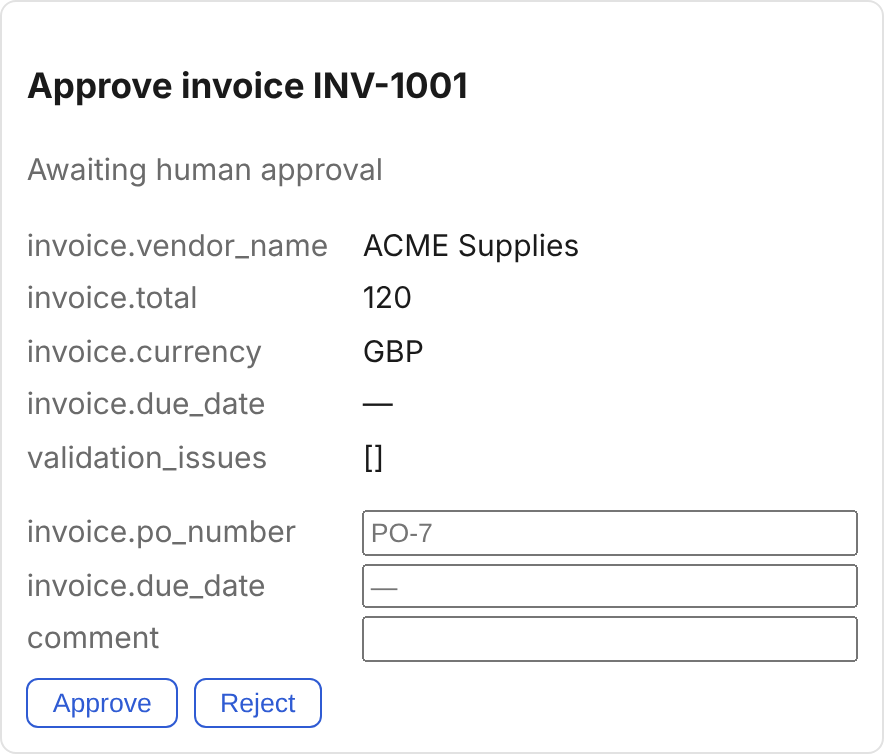
- The title is a template over the run's state (
Approve invoice {{ invoice.invoice_number }}). - The fields listed in the YAML are shown read-only.
- The editable fields can be corrected by the approver; only those fields can be changed.
- Comment is stored with the decision.
3.5 The clerk cannot approve
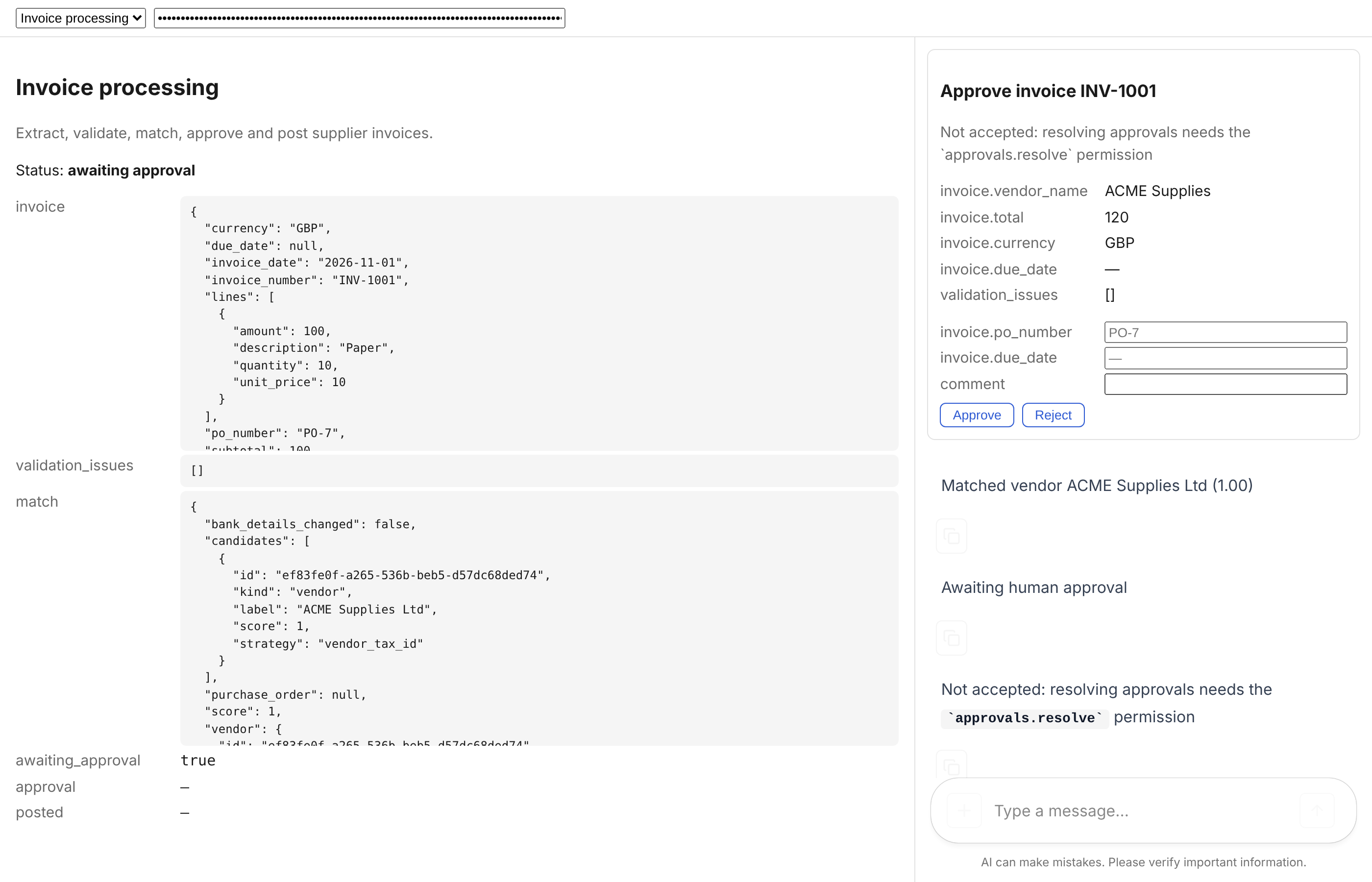
A clerk does not hold the approvals.resolve permission. The backend refuses the decision, says
why (Not accepted: …), and offers the same approval again, so someone who may decide still can.
The run is not changed.
The same happens if the person who started the run tries to approve it (four-eyes: the person who started a run cannot approve it), or if a decision edits a field the card does not mark editable.
3.6 The approver corrects and approves
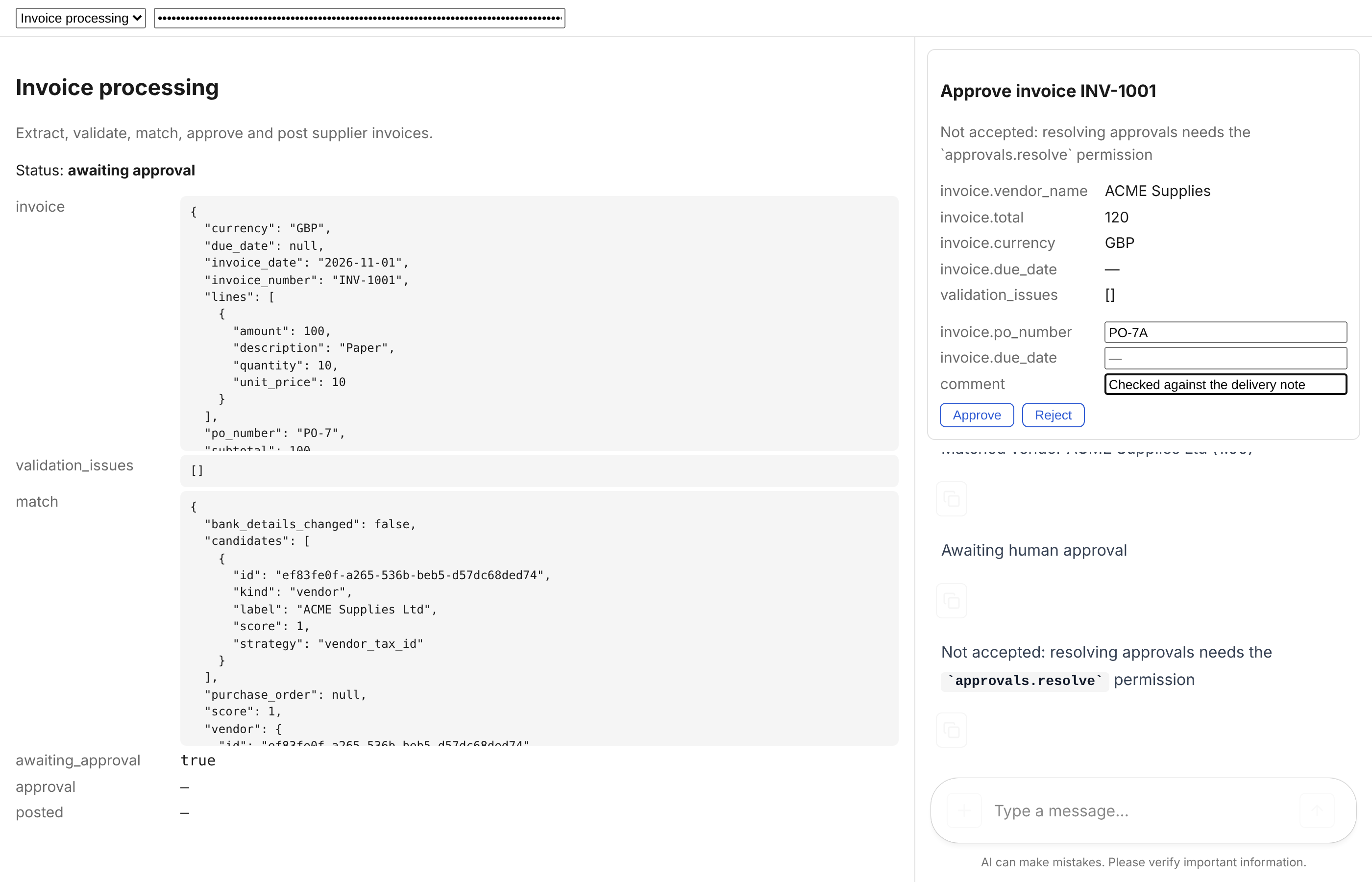
Paste the approver's token. The same run, still waiting, stays on screen. Correct the PO number, add a comment and press Approve:
The run continues. The bill is posted to accounting exactly once, and the status becomes posted:
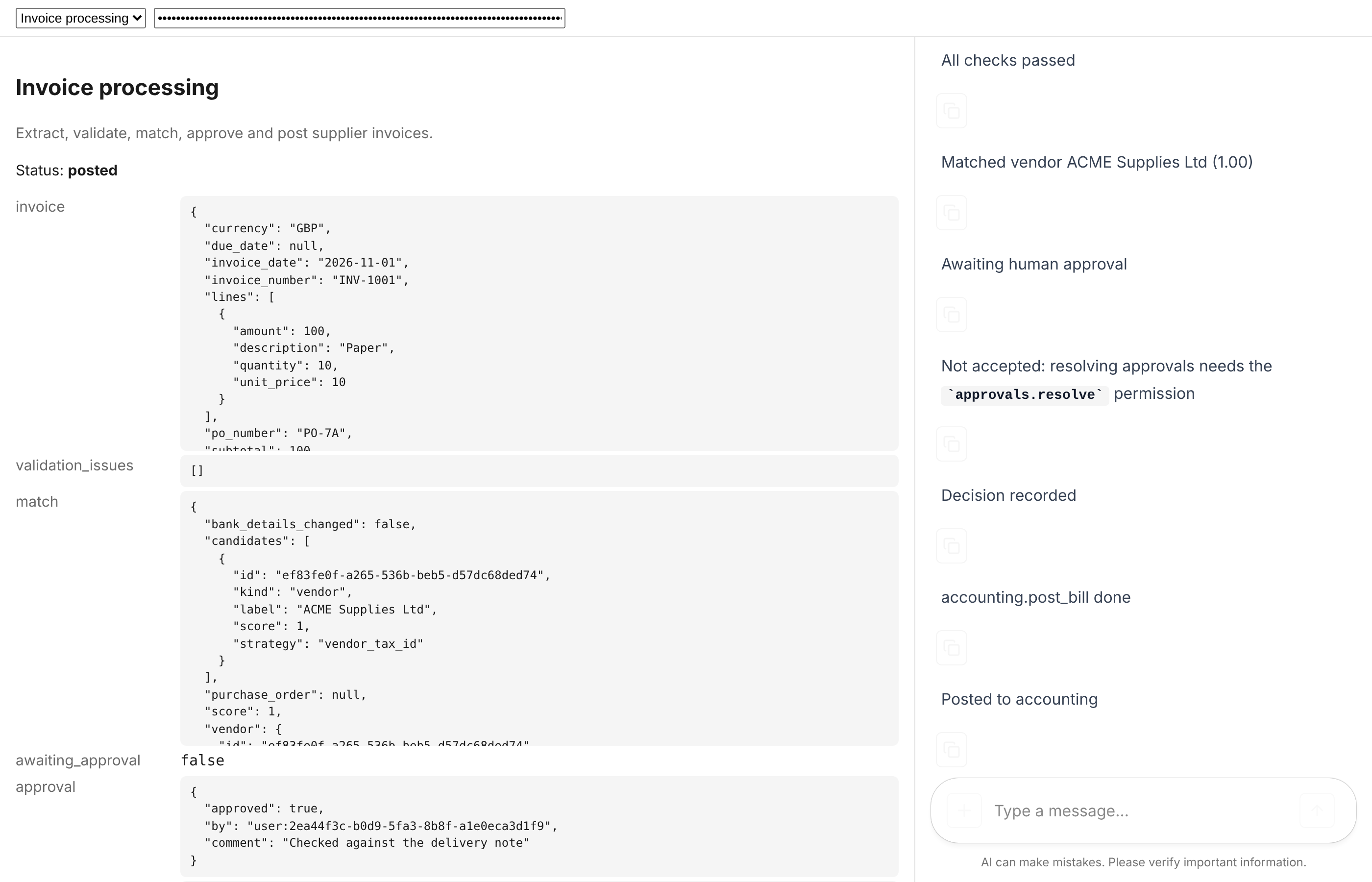
Scroll the state panel to see the decision and the accounting response. The posted bill carries
the corrected PO-7A:
3.7 Rejecting an invoice
Reload the page to start a new conversation, submit another invoice as the clerk, then reject it
as the approver with a comment. The run ends at the workflow's reject node, Closed as rejected,
and nothing is posted:
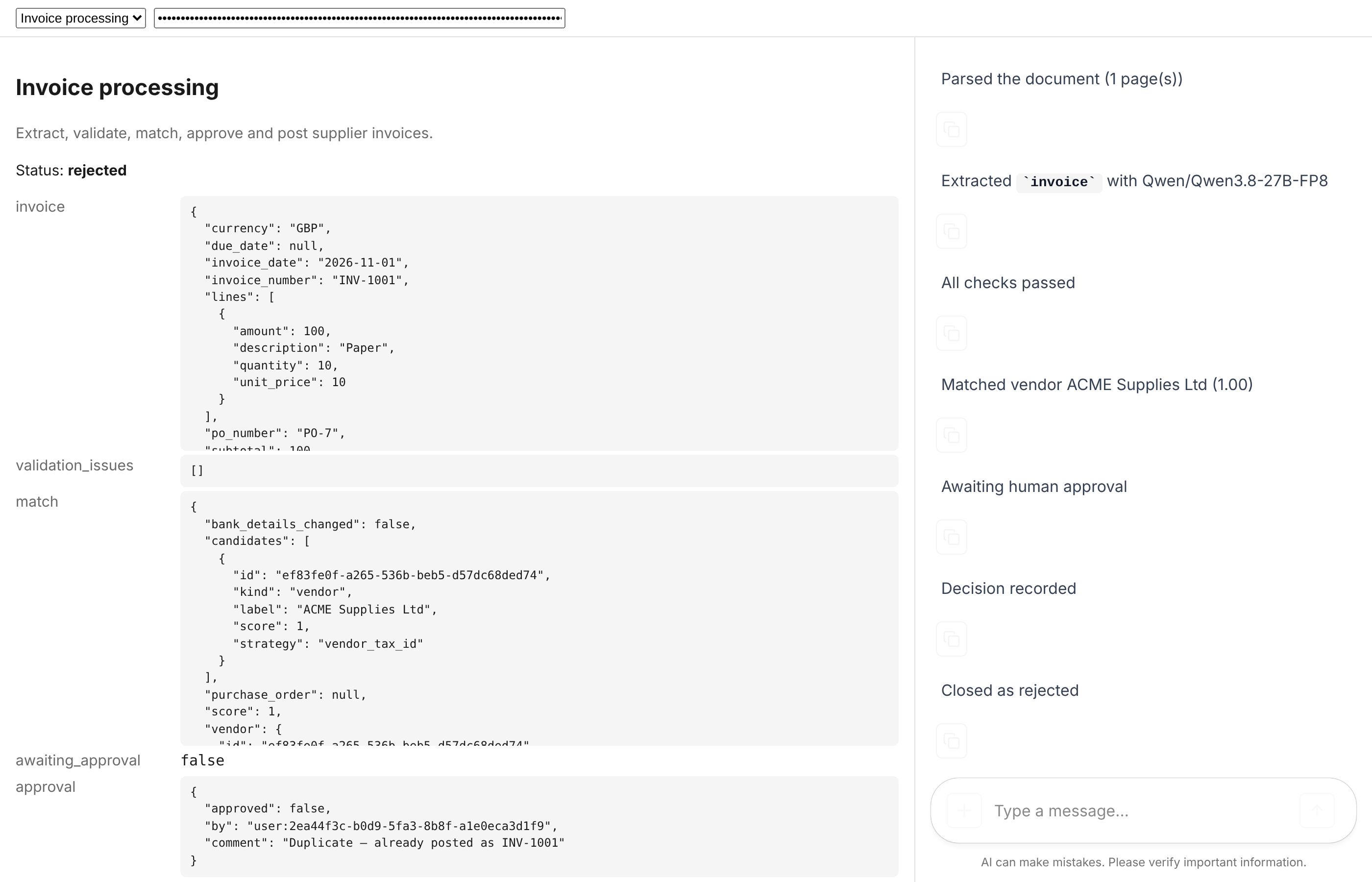
(The fixture model extracts INV-1001 whatever you send, so the second invoice shows the same fields.)